> For the complete documentation index, see [llms.txt](https://docs.bogos.io/llms.txt). Markdown versions of documentation pages are available by appending `.md` to page URLs; this page is available as [Markdown](https://docs.bogos.io/quick-start-guide/adjust-bogos-blocks.md).
# Adjust BOGOS Blocks
This guide explains how to adjust the BOGOS blocks on your Shopify store.
Normally, certain BOGOS blocks will **automatically appear on your Shopify storefront.**
However, you **have to manually adjust BOGOS blocks** if you:
* Don't see the widgets on your preferred pages
* Use [Checkout Upsell](/detailed-guide/upsell-offer/create-checkout-upsell.md) or [Thank You Page Upsell](/detailed-guide/upsell-offer/create-thank-you-page-upsell.md)
* Want to change the widgets' position
* Want to add new blocks on product pages or other pages on your store
{% embed url="" %}
**Adjusting BOGOS blocks includes 6 essential steps:**
1. Navigate to your Theme Editor > [Choose the page where you want to add a block.](#choose-the-page-to-adjust-blocks)
2. Click [Add section or Add Block > Apps](#add-a-new-bogos-block).
3. Search for and select the BOGOS block you want.
4. [Enter offer/booster ID](https://bogos-guideline.gitbook.io/user-guide/user-guide/customize/customize-bogos-blocks#enter-id-if-required) (if required).
5. [Drag and drop the block](#move-an-existing-bogos-block) to your preferred location.
6. Click Save.
**For a more detailed guide**, please read the guide below:
### Choose the page to adjust blocks
Before adding or moving a BOGOS block, decide which page you want to display it on.
1. Go to Shopify admin > Online Store > Themes > Edit Theme.
2. At the center of the header, choose the page you want to edit.
{% hint style="info" %}
**Each page type supports different BOGOS blocks:**
* Product page (all BOGOS blocks)
* Homepage, Collection page, Cart page (specific blocks only)
* Checkout page (checkout upsell block - only for Shopify Plus)
* Thank you page (thank you upsell block)
* Custom page (specific blocks only)
{% endhint %}
After navigating to the page you want to edit, you can begin adding or moving BOGOS blocks.
### Add a new BOGOS block
You can add a BOGOS block either **inside an existing section** or **as part of a new section**, depending on your theme layout and display preference.
1. Choose how you want to add the block:
* Click on the existing section, or
* Click Add section if you want to create a new one
2. Add block > Apps > Choose the block you want.
{% hint style="info" %}
Only blocks that work on that page will show up in the list. If a block does not appear in the list, it is not supported on that page.
{% endhint %}
2. [Enter offer/booster ID](#enter-id) (if required).
3. Drag and drop the block or the section to your preferred location.
4. Click Save.
### Move an existing BOGOS block
To change the position of a block inside an existing section:
1. Locate the section that contains the BOGOS block you want to move.
2. Drag and drop the block to your desired position within the section.
3. Click Save.
**Note:**
* Blocks can only be moved within their current section.
* If you want to **move a block to a different section**, you’ll need to:
1. Select and delete the existing BOGOS block.
2. Locate the new section > Add Block > Apps.
3. Search and reselect the block you want to move.
4. Drag and drop the block to your preferred location.
5. Click Save.
### Enter ID (if required)
An offer ID or booster ID is a unique identifier for each offer and booster in BOGOS. It allows you to display the correct block with the ID you enter.
{% hint style="info" %}
Certain features, like the gift slider, checkout upsell, and gift thumbnail, don’t allow entering an ID. Instead, these blocks will automatically appear when customers meet the specified conditions.
{% endhint %}
🔻 On the product page, ID is optional
**In most cases, you don't need** to enter an ID on product pages**.** BOGOS automatically matches and displays the widget with relevant content for that product.
E.g: a Classic Bundle widget will auto-appear on product pages for all products included in that bundle.
**You only need to enter** an ID if:
* You have multiple [Progress Bars](/detailed-guide/boosters/create-progress-bar.md) or [Today Offer blocks](/detailed-guide/boosters/create-today-offer-block.md), and you want to display the correct one on each product page. (If you don't specify an ID, all Progress Bars or Today Offer blocks will be shown by default.)
* You want to display a different block instead of the one BOGOS automatically selects.
🔻 On other pages, ID is compulsory
When you add BOGOS blocks to the homepage, collection pages, cart page, or your custom pages, you **must enter** a specific ID to specify which block to display.
#### 🔻 How to find and enter an ID
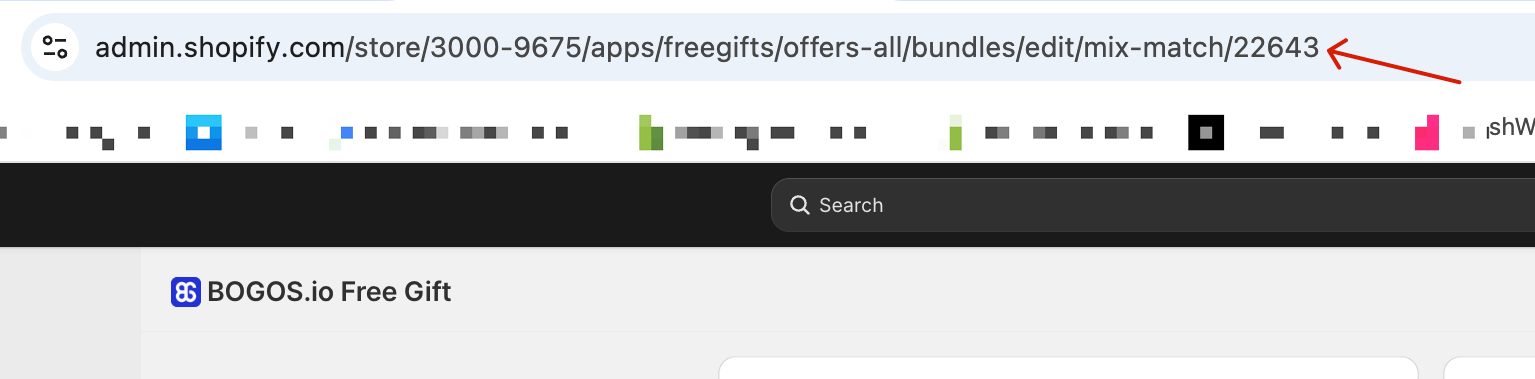
1. Open BOGOS app > Navigate to the setup screen of the offer or booster you want to display.
2. Copy your ID at the end of the URL link (e.g, 15556)
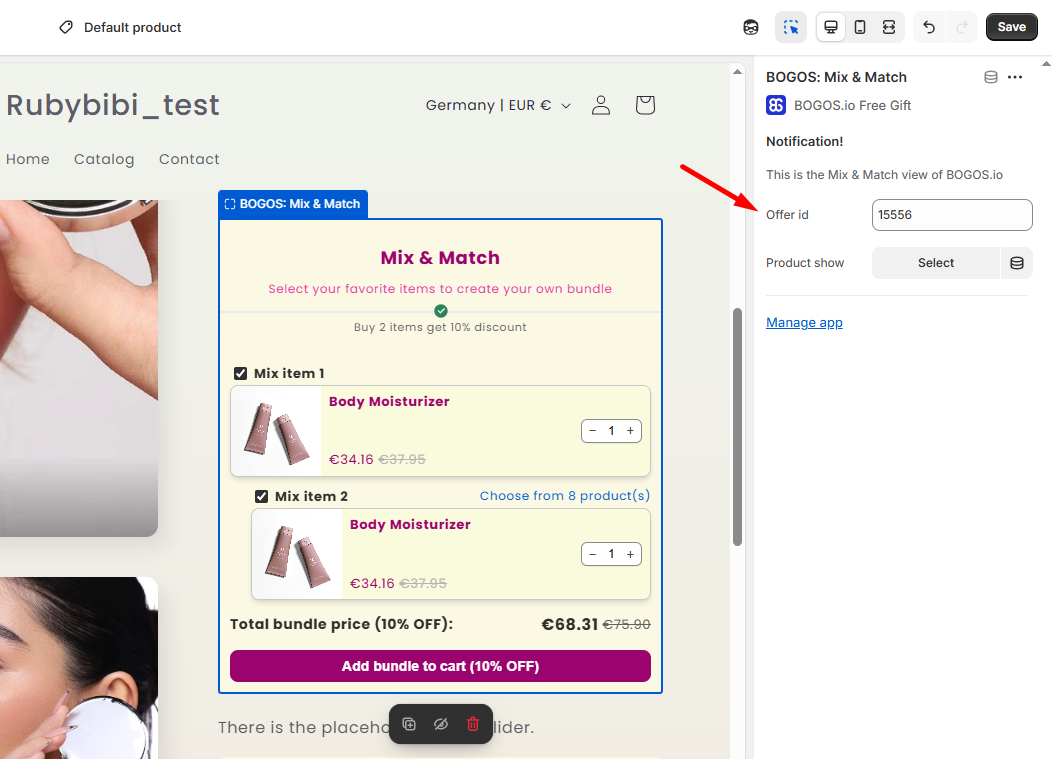
1. In the Theme Editor, select the needed BOGOS block.
2. Locate the ID field in the block settings.
3. Enter the correct ID (e.g, 15556).
4. Click Save.
### Frequently Asked Questions (FAQs)
Why doesn't my offer appear on my store even though it's enabled?
**A1:** If your offer is enabled but not showing on your store, check the following:
* Verify if the conditions are met or not, as some widgets only show up when condition.. (for example, correct products, collections, or cart conditions).
* Make sure the offer block is added to your theme. Navigate to your Theme Editor and verify the BOGOS block appears on the page. If it doesn't show up, please [add the offer block](#add-a-new-bogos-block) to your page.
* If using an Offer ID, confirm you entered the correct ID in the block settings.
How do I limit a widget to appear only on specific pages?
**A2:** To display a BOGOS block on specific pages only, not all your pages, you will need to [create a custom page template](https://help.shopify.com/en/manual/online-store/themes/theme-structure/templates):
1. Go to Shopify admin > Online Store > Themes > Edit Theme.
2. Click the Home page drop-down menu > Choose Pages > Create template.
3. Customize the page as you want.
4. [Add the block](#add-a-new-bogos-block) you want to show up.
In which cases are the Offer ID?
You only need to enter an Offer ID (or Booster ID) in these cases:
* On product pages:
* Usually you don’t need to enter an ID – BOGOS auto-shows the right widget (e.g. bundle for that product).
* Enter an ID only if:
* You have multiple Progress Bars or Today Offer blocks and want a specific one per product page, or
* You want to show a different block than the one BOGOS auto-selects.
* On other pages (home, collection, cart, custom pages):
ID is required. When you add a BOGOS block in the Theme Editor, you must enter the correct ID so Shopify knows which offer/block to display.\
\
For blocks like gift slider, Checkout upsell upsell, gift thumbnail, you don’t need to enter an ID, they show automatically when conditions are met.
Where can I find my offer ID?
Please follow the steps below:
Step 1. Open the BOGOS app in your Shopify admin.
Step 2. Go to the specific offer/booster you want (e.g., Classic Bundle, Progress Bar, Today Offer block) and click to edit it.
Step 3. Look at your browser URL—the numeric value at the very end is the ID (for example: .../mix-match/22643 → ID = 22643).
Step 4. Copy that number and paste it into the Offer ID / Booster ID field in your theme block settings (Online Store → Customize → select the BOGOS block → paste ID → Save).
---
# Agent Instructions
This documentation is published with GitBook. GitBook is the documentation platform designed so that both humans and AI agents can read, navigate, and reason over technical content effectively. Learn more at gitbook.com.
## Querying This Documentation
If you need additional information that is not directly available in this page, you can query the documentation dynamically by asking a question.
Perform an HTTP GET request on the current page URL with the `ask` query parameter, and the optional `goal` query parameter:
```
GET https://docs.bogos.io/quick-start-guide/adjust-bogos-blocks.md?ask=&goal=
```
`ask` is the immediate question: it should be specific, self-contained, and written in natural language.
`goal` is optional and describes the broader end goal you are ultimately trying to accomplish on behalf of the user. GitBook uses it to tailor the answer towards what is most useful for that goal.
The response will contain a direct answer to the question and relevant excerpts and sources from the documentation.
Use this mechanism when the answer is not explicitly present in the current page, you need clarification or additional context, or you want to retrieve related documentation sections.