> For the complete documentation index, see [llms.txt](https://docs.bogos.io/llms.txt). Markdown versions of documentation pages are available by appending `.md` to page URLs; this page is available as [Markdown](https://docs.bogos.io/detailed-guide/discount-offer/create-volume-discount.md).
# Create Volume Discount
Overview of creating a volume discount with BOGOS
To get started, navigate to **All offers** in the your **BOGOS Navigation** -> click **Create offer** -> choose **Discount offer** -> **Volume discount.**
{% embed url="" %}
### 1. Volume Discount information
#### **1.1. Discount name**
The discount name is an internal label for you and your team to manage and is not shown to customers.
#### **1.2. Widget title**
This is the title for your discount widget. It is shown to buyers on the product page, so it should be appealing and catch customers’ attention.
#### **1.3. Block description**
This section is used to help customers explore more information about the discount codes showcased in the widget.
#### 1.4. Start time and End time
* **Start time:** The exact time the offer begins.
* **End time:** The exact time the offer ends.
#### 1.5. Show countdown timer (optional)
Enable a countdown timer on the widget to motivate customers to buy before the offer ends.
* This option is disabled by default. It becomes available once you set an End time or enable Recurring time.
* Without Recurring time, the countdown runs based on the End time.
* When Recurring time is set, the countdown runs based on each recurring session's End time (in days).
#### 1.6. Recurring time (optional)
Enable the offer on a repeating schedule within its active period, ideal for daily flash sales, weekend promotions, or monthly campaigns. When enabled, the active period's End time is automatically synced with the recurrence end date.
To set it up, configure the following:
**1.6.1. Frequency**
Select how often the offer repeats: Daily, Weekly, or Monthly.
* **Daily:** The offer runs every day within the chosen time window.

* **Weekly:** The offer runs on selected days of the week.

* **Monthly:** The offer runs on a specific day each month. If you select day 29, 30, or 31, the offer will repeat on the month's last day if that date doesn't exist.

**1.6.2. Start time (in day) / End time (in day)**
The daily time window when the offer is active during each recurring session (e.g., 09:00 to 11:00). Times are set to your store's current timezone.
**1.6.3. End recurring when**
Choose when the recurrence stops.
* **No end date:** The offer keeps recurring until you manually deactivate it.
* **On date:** The offer stops on a specific date. If you already set an End time, this field defaults to that date, but you can still change it.
* **After N times:** The offer stops after it has run a set number of times.
{% hint style="warning" %}
When created with Recurring time enabled, the offer appears with Scheduled status so you can track upcoming runs.
{% endhint %}
{% hint style="warning" %}
If an offer expires while a customer is still in the checkout process, the discount is automatically removed, and products are charged at their original price.
{% endhint %}
### 2. Offers
**Quantity logic:** Select how products in the cart are counted toward the quantity threshold (set in [Tiers](#id-4.-tiers) section).
* **Count same products only:** Buying multiple units of the same product counts (e.g, If customers must buy 3 products, 2A + 1B doesn’t qualify for the discount, but 3A or 3B does).
* **Count unique products only:** Buying multiple units of the same products counts only one. Adding more of the same item does not increase the count.
* By product: Products must be different, and variants of the same product count as one (e.g, 1A + 1B = 2 items, but 2A = 1 item).
* By variant: Variants must be different (e.g, 1A-Red + 1A-Blue = 2 items, but 2A-Red = 1 item).
* **Count all products:** Every item in the cart counts, whether the same or different (e.g, 2A + 1B = 3 items).
{% hint style="warning" %}
The Quantity options display type is not available when Count unique products only is selected.
{% endhint %}
**Choose display type:** Choose a suitable type for displaying the discount volume between:
* Quantity options: A customizable widget that lets shoppers select their desired quantity directly.
* Quantity discount table: A clear breakdown of all available discount tiers that automatically displays on product pages.
**Apply to:** Select products you want to apply the Volume Discount among:
* Any products.
* All except selected products.
* All except selected types/vendors/collections.
* Selected products.
* Products in selected types/vendors/collections.
### 3. Add sub-conditions
Sub-conditions add extra rules to decide who can see and get your offers. Therefore, only targeted customers can see and apply the offer, while others won't see it at all.
{% hint style="info" %}
* These sub-conditions are optional. If you don't add any, the offer will be available to all customers.
* You can combine multiple sub-conditions. Customers must meet all selected criteria to qualify.
{% endhint %}
1. *Specific link address* – Apply offers to customers accessing your store from a specific link. Perfect for email campaigns, social posts, or affiliates.
2. *Order history* – Target customers based on purchase behavior. Best for rewarding first-time buyers, high spenders, and more.
3. *Customer tags* – Show or hide offers based on customer tags.
4. *Customer location* – Run country-specific promotions based on the customer’s IP address.
5. *Markets* – Run region-specific offers based on your Shopify Markets.
6. *Subscription products* – Apply the offer only to subscription products or only to one-time purchase products.
♦️ For more details, visit our \[[Sub-Condition](/detailed-guide/detailed-doc/how-to-add-bogos-sub-conditions-to-bundle-upsell-discount.md)] guide.
### 4. Tiers
#### 4.1. Tier quantity logic
This setting controls how the discount applies when a customer's cart quantity matches or exceeds a tier.

To set it up, click **Change logic** and select one of the following:
* **Range quantity (default):** Discount is applied to tier quantity and every item above it. (e.g: tier quantity is 3, add 5 items → get 5 discounted)
* **Capped quantity:** Only discount the tier quantity - extra items stay full price. (e.g: tier quantity is 3, add 5 items → get 3 discounted, 2 at full price)
* **Exact quantity:** Only discount when customers add the exact tier quantity. (e.g: tier quantity is 3, add 5 items → discount is not applied)
{% hint style="warning" %}
When Tier quantity logic is set to Exact quantity, the "Any items exceeding last tier's quantity will not be discounted" checkbox will be disabled.
{% endhint %}
#### 4.2. Set up each tier
Each volume discount features multiple tiers, with specific product quantity thresholds and discount levels.
{% hint style="info" %}
Example:
* Tier 1: Buy **2 items** → 10% off
* Tier 2: Buy **5 items** → 30% off
So:
* Buy **2–4 items** → 10% off
* Buy **5 or more** → 30% off
To let only items get 30% off, extra items won’t be discounted, enable "Any items exceeding the last tier's quantity will not be discounted".
{% endhint %}
**Title:** This is the name of the tier. Some names commonly used are Single, Double, or Trio.
**Quantity:** This represents the minimum product quantity customers must purchase to qualify for the corresponding tier discount.
**Discount type:** Choose among 4 types:
* Percentage (e.g, 20% off)
* Amount (e.g, $20 off)
* Fixed total price (e.g, buy the tier at $100 total)
* Fixed price per item (e.g, $15 per item, so 3 items = $45)
**Free gift:** Add one or more free gifts to this tier.

Click the "Free gift" button next to Shipping discount, then fill in the following for each gift:
* Gift product/variant: Select one or multiple gift products.
* Quantity: The number of gift items to add (default: 1).
* Label on widget: The label shown on the widget (default: "Free gift").
{% hint style="warning" %}
The free gift is only added when customers purchase through the BOGOS widget. Purchases made outside the widget will still get the tier discount, but no gift will be added.
{% endhint %}
**Shipping discount:** Add a shipping discount alongside the main discount selected above

**Add currency:** if you choose **"amount" or "fixed price”**, and also have Shopify Markets set up, you can customize how much discount amount to offer in each currency, instead of using Shopify’s exchange rates (e.g., SGD 10, CN¥8, A$12).
**Subtitle:** This section helps merchants describe more about the tier.

**Label** (for "Quantity options" display type)**:** The label appears above the title, highlighting the potential savings when using volume discounts.

**Tag:** The tag will be displayed next to the label. This helps to identify each tier.

**Pre-selected** (for "Quantity options" display type)**:** Pre-selected is used by default to select a tier.
**Any items exceeding last tier's quantity will not be discounted** (optional): If the last tier requires 3 items, customers who add 4+ ones will only receive the discount on the first 3 items. Any items beyond that quantity are charged at full price.
{% hint style="warning" %}
This option is disabled when Tier quantity logic is set to Exact quantity.
{% endhint %}
### 5. Layout
This section controls how the tiers and free gifts are visually arranged on the widget.

#### 5.1. Tier layout
Choose how the tier list is displayed on the widget:
* **Vertical list (default):** Tiers are stacked vertically, one above another.
* **Horizontal list:** Tiers are displayed side by side in a horizontal row, suitable for 2–3 tiers.
#### 5.2. Tier add-on
Customize how the tier add-ons (label, tag, free gift indicator, shipping discount) are displayed on each tier:
* **Tier add-on displayed as:** Choose between Banner (full-width bar within the tier) or Label (compact label style).
* **Gift product list layout:** Choose how the list of gift products is arranged when a tier is reached: Vertical (stacked) or Horizontal (side by side).
### 6. Subscription
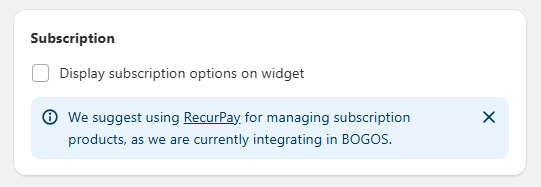
This new Subscription option will enable your customers to directly buy subscription products combined with volume discount in a single widget by BOGOS.
At the same time, your volume discount offers created with the BOGOS app will instinctively stack with these subscription discounts.
If you choose to hide the subscription option, your customers can only purchase one-time items through this Volume Discount widget.
However, as long as you have an active subscription plan which created on a subscription app, subscription discounts will automatically apply when customers meet your conditions, even if they purchase through a third-party subscription widget.
{% hint style="info" %}
When a product has both subscription and volume discounts, we’ll apply the subscription discount first, then the volume discount (in case the customer's cart qualifies for both).
Example: There is a $5 jacket with 5% subscription discount and 10% volume discount (buy 2 items). When a customer buys 2 jackets with a subscription, we will have the final price:
($5 × 95%) × 90% = $4.28 per jacket
{% endhint %}
{% hint style="warning" %}
If you have set Subscription products sub-condition to Only one-time purchase products, the Display subscription options on widget toggle is auto-disabled, since the offer no longer applies to subscription purchases.
{% endhint %}
### 7. Discount code
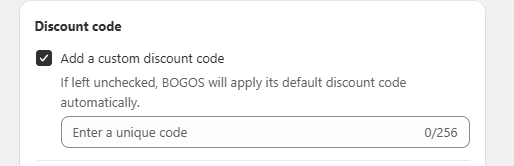
#### Add a custom code
This section allows you to customize the discount code name to match your brand.
{% hint style="info" %}
The discount code name must be under 256 characters and unique across all Shopify discounts.
{% endhint %}
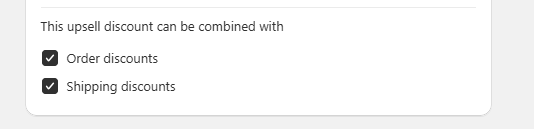
#### **Combination**
This option lets you enhance your volume discounts by pairing them with existing promotions on your store:
* Order discounts
* Shipping discounts
### 8. Customize Volume discount
Refer to [this doc](#id-5.-customize-volume-discount) to learn the detailed guide on **Customize Volume discount**
## FAQs
Is it possible to set up a discount when purchasing exactly 3 products?
Yes. In the Tiers section, click **Change logic** and select **Exact quantity**. The discount will only apply when customers add the exact tier quantity to their cart (e.g., only 3 items get the discount; 2 or 4 items do not qualify).
Is it possible to show the compare-at-price of a product in Volume discount widget?
To ensure a transparent shopping experience and maintain Shopify compliance, our app displays the current price of products and applies the discount on these prices too.
How do I make the Volume Discount offer visible only to VIP customers?
You can use the **"Customer tags"** sub-condition. By adding a tag like "VIP," the volume discount widget will only be visible and applicable to logged-in customers who have that specific tag.

---
# Agent Instructions
This documentation is published with GitBook. GitBook is the documentation platform designed so that both humans and AI agents can read, navigate, and reason over technical content effectively. Learn more at gitbook.com.
## Querying This Documentation
If you need additional information that is not directly available in this page, you can query the documentation by asking a question.
Perform an HTTP GET request on the following URL with the `ask` and `goal` query parameters:
```
GET https://docs.bogos.io/detailed-guide/discount-offer/create-volume-discount.md?ask=&goal=
```
`ask` is the immediate question: it should be specific, self-contained, and written in natural language.
`goal` is what the user is ultimately trying to achieve, the reason they need the answer. Sharing it helps GitBook give you a better, more relevant answer. A goal is most helpful when it describes the outcome the user wants rather than restating the question. For example, with `ask=how do I create an API token`, a goal like `automate deployments from our CI pipeline` lets GitBook tailor the answer to that use case.
The response will contain a direct answer to the question and relevant excerpts and sources from the documentation.
Use this mechanism when the answer is not explicitly present in the current page, you need clarification or additional context, or you want to retrieve related documentation sections.

 **Quantity logic:** Select how products in the cart are counted toward the quantity threshold (set in [Tiers](#id-4.-tiers) section).
* **Count same products only:** Buying multiple units of the same product counts (e.g, If customers must buy 3 products, 2A + 1B doesn’t qualify for the discount, but 3A or 3B does).
* **Count unique products only:** Buying multiple units of the same products counts only one. Adding more of the same item does not increase the count.
* By product: Products must be different, and variants of the same product count as one (e.g, 1A + 1B = 2 items, but 2A = 1 item).
* By variant: Variants must be different (e.g, 1A-Red + 1A-Blue = 2 items, but 2A-Red = 1 item).
* **Count all products:** Every item in the cart counts, whether the same or different (e.g, 2A + 1B = 3 items).
{% hint style="warning" %}
The Quantity options display type is not available when Count unique products only is selected.
{% endhint %}
**Choose display type:** Choose a suitable type for displaying the discount volume between:
* Quantity options: A customizable widget that lets shoppers select their desired quantity directly.
* Quantity discount table: A clear breakdown of all available discount tiers that automatically displays on product pages.
**Apply to:** Select products you want to apply the Volume Discount among:
* Any products.
* All except selected products.
* All except selected types/vendors/collections.
* Selected products.
* Products in selected types/vendors/collections.
### 3. Add sub-conditions
Sub-conditions add extra rules to decide who can see and get your offers. Therefore, only targeted customers can see and apply the offer, while others won't see it at all.
{% hint style="info" %}
* These sub-conditions are optional. If you don't add any, the offer will be available to all customers.
* You can combine multiple sub-conditions. Customers must meet all selected criteria to qualify.
{% endhint %}
**Quantity logic:** Select how products in the cart are counted toward the quantity threshold (set in [Tiers](#id-4.-tiers) section).
* **Count same products only:** Buying multiple units of the same product counts (e.g, If customers must buy 3 products, 2A + 1B doesn’t qualify for the discount, but 3A or 3B does).
* **Count unique products only:** Buying multiple units of the same products counts only one. Adding more of the same item does not increase the count.
* By product: Products must be different, and variants of the same product count as one (e.g, 1A + 1B = 2 items, but 2A = 1 item).
* By variant: Variants must be different (e.g, 1A-Red + 1A-Blue = 2 items, but 2A-Red = 1 item).
* **Count all products:** Every item in the cart counts, whether the same or different (e.g, 2A + 1B = 3 items).
{% hint style="warning" %}
The Quantity options display type is not available when Count unique products only is selected.
{% endhint %}
**Choose display type:** Choose a suitable type for displaying the discount volume between:
* Quantity options: A customizable widget that lets shoppers select their desired quantity directly.
* Quantity discount table: A clear breakdown of all available discount tiers that automatically displays on product pages.
**Apply to:** Select products you want to apply the Volume Discount among:
* Any products.
* All except selected products.
* All except selected types/vendors/collections.
* Selected products.
* Products in selected types/vendors/collections.
### 3. Add sub-conditions
Sub-conditions add extra rules to decide who can see and get your offers. Therefore, only targeted customers can see and apply the offer, while others won't see it at all.
{% hint style="info" %}
* These sub-conditions are optional. If you don't add any, the offer will be available to all customers.
* You can combine multiple sub-conditions. Customers must meet all selected criteria to qualify.
{% endhint %}