> For the complete documentation index, see [llms.txt](https://docs.bogos.io/llms.txt). Markdown versions of documentation pages are available by appending `.md` to page URLs; this page is available as [Markdown](https://docs.bogos.io/detailed-guide/detailed-doc/how-to-add-bogos-sub-conditions-to-bundle-upsell-discount.md).
# How to Add BOGOS Sub-conditions to Bundle, Upsell, Discount?
Learn how to use advanced sub-conditions with Bundles, Upsells, and Discounts to target the right customer segments.
Overall, sub-conditions **add extra rules to decide who can see and get your offers**. Therefore, only targeted customers can see and apply the offer, while others won't see it at all.
{% hint style="info" %}
* These sub-conditions are optional. If you don't add any, the offer will be available to all customers.
* You can combine multiple sub-conditions in one offer. Customers must meet all of them to qualify for your offer.
{% endhint %}
### 1. Specific Link Address
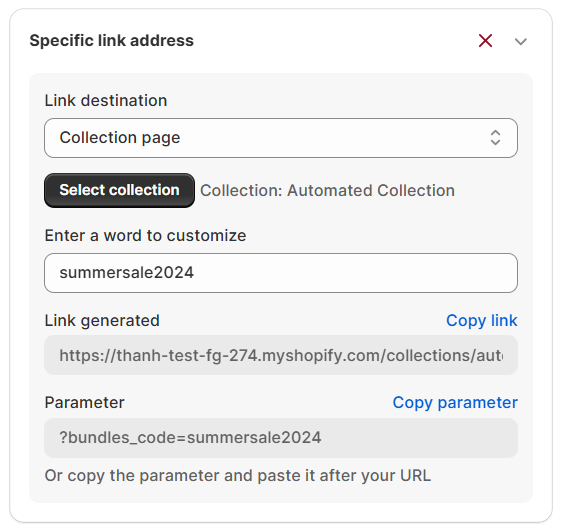
This condition only allows customers who access your store through a specific link to get your offers. Use this for email campaigns, social media posts, or influencer partnerships to target specific traffic sources.
***Create a specific link address for an offer:***
1. *Choose a link destination:* Select where customers should land (home page, collection page, or product page).
2. *Enter a word to customize* (e.g., summersale2024): This creates a unique link for your campaign.
3. *Copy the link generated:* Copy and share this link in your marketing campaigns. Customers who access your store via this link will get your offers.
***Create many link destinations for an offer:***
If you want to have multiple link destinations (not just the one selected above), for example, use this when your campaign promotes multiple products, and you want customers to enter from different product links to get your offer, follow these steps:
1. *Repeat steps* to create a specific link address for an offer
2. ***Copy the parameter*** and add it to the end of each link.
{% hint style="info" %}
If your URL already includes a “?” symbol, **change the “?” in the parameter to “&”.** Examples:
* Original URL with “?”:
* URL with correct parameter:
* URL with wrong parameter:
{% endhint %}
### 2. Customers' order history
This sub-condition targets customers based on their purchase history. Only customers who meet the order requirements you set will be eligible for the offer.
{% hint style="info" %}
This sub-condition requires customers to log in to your store.
{% endhint %}
1. **Select when order was created from:** Set a date range to apply the conditions you select below within that timeframe, or leave it blank to apply them across all time.
2. **Select the conditions you want to apply:**
* *Total spent in order history:* Target customers based on their total spend on your store (e.g., reward high-spending, VIP customers).
* *Total spent on last order:* Target customers based on their most recent order value. (e.g., low spender).
* *Total number of orders placed:* Target customers based on how many orders they’ve made (e.g., first-time or repeat buyers).
* *Limit a number of uses per customer:* Set how many times each customer can use the offer. After reaching the limit, they won’t qualify again.
### 3. Customer tags
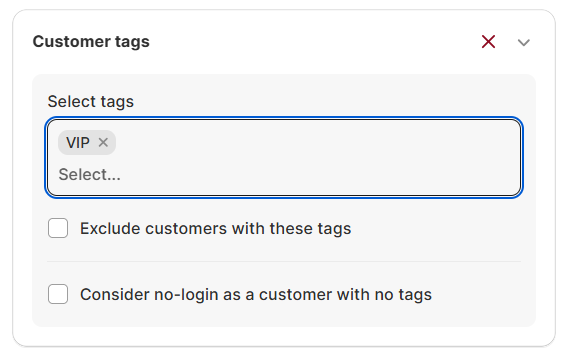
This sub-condition lets you control who can receive an offer based on customer tags you set up, such as VIP, wholesale, or low spenders.
{% hint style="info" %}
* Customer tags must be set up in your Shopify admin under Customers before being used in BOGOS.
* This sub-condition requires customers to log in to your store.
{% endhint %}
***▶ To show offers to specific customer tags:***
1. *Select tags:* Enter the customer tags you want to target (e.g., VIP, wholesale, low spender).
2. BOGOS will apply the offer only to customers whose accounts match these tags.
***▶ To exclude offers from specific customer tags:***
1. *Select tags:* Enter the customer tags you want to exclude (e.g., VIP, wholesale, low spender).
2. *Exclude customers with these tags:* Customers with the selected tags will not receive the offer. The offer will apply to all other logged-in customers.
3. *Consider no-login as a customer with no tags (recommended):* Turn this on to **allow not logged-in** customers to receive the offer as well.
### 4. Customer location
This sub-condition lets you control who can receive an offer based on the customer’s location, helping you run location-specific promotions.
{% hint style="info" %}
If you have set up Shopify Markets and want to apply offers to them, use the [Markets sub-condition](#id-5.-markets) instead.
{% endhint %}
▶ **To show offers to specific locations:**
1. *Select location:* Choose one or more countries where the offer should apply (e.g., France).
2. *BOGOS will check* the **customer’s IP address** and apply the offer only if their country matches the selected locations.
**▶ To exclude offers from specific locations:**
1. *Select location:* Choose the countries you want to exclude (e.g., France).
2. *Exclude customers from selected locations:* Prevent customers from selected locations from receiving the offer. The offer will apply to customers from all other locations instead.
### 5. Markets
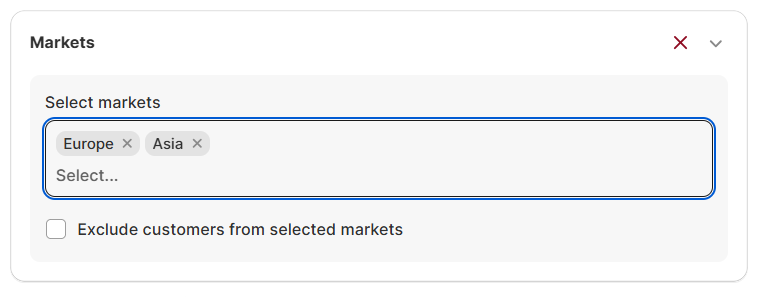
This sub-condition syncs with your Shopify Markets setup to decide which customers can receive an offer.
{% hint style="info" %}
Shopify Markets must be set up in your Shopify admin before being used in BOGOS.
{% endhint %}
**▶ To show offers to specific markets:**
1. *Select markets:* Choose one or more Shopify Markets (for example: Europe, Asia).
**▶ To exclude offers from specific markets:**
1. *Select markets:* Choose the markets you want to exclude (for example: Europe, Asia).
2. *Exclude customers from selected markets:* Enable it to prevent customers from the selected markets from receiving the offer. The offer will apply to customers from all other markets instead.
### 6. Subscription products
This sub-condition lets you apply the offer only to subscription products or only to one-time purchase products, perfect for stores running subscription plans alongside regular purchases.

Available for Product Discount, Volume Discount, Discount on Cheapest/Most Expensive Item, and Cart Discount.
{% hint style="warning" %}
Your store must have a subscription app (e.g., Appstle, Recurpay) connected for this sub-condition to work.
{% endhint %}
To set it up, under Apply the offer to, select one of the following:
* Only subscription products: The offer applies only to subscription products.
* Only one-time purchase products: The offer applies only to one-time purchase products.
How each discount type behaves:
* **Product Discount:** The discount badge only shows on the matching purchase option. For subscription products, the price does not auto-update on the product page; a note (e.g., "+10% OFF discount will auto apply in cart") appears instead. Customize this note in Customize > Discount > Product Discount.
* **Volume Discount:** When set to Only subscription products, the widget is hidden on one-time purchase products. When set to Only one-time purchase products, the Display subscription options on widget toggle is auto-disabled.
* **Discount on Cheapest/Most Expensive Item:** Only matching products appear in the widget's product list. For subscription products, customers can pick a subscription plan from a purchase option modal before adding to cart.
* **Cart Discount:** Two extra options appear in the Discounts & Tiers section — Apply discount to entire order (discount applies to the full cart as long as the cart contains at least one matching product) or Apply discount only to eligible products.
---
# Agent Instructions
This documentation is published with GitBook. GitBook is the documentation platform designed so that both humans and AI agents can read, navigate, and reason over technical content effectively. Learn more at gitbook.com.
## Querying This Documentation
If you need additional information that is not directly available in this page, you can query the documentation by asking a question.
Perform an HTTP GET request on the following URL with the `ask` and `goal` query parameters:
```
GET https://docs.bogos.io/detailed-guide/detailed-doc/how-to-add-bogos-sub-conditions-to-bundle-upsell-discount.md?ask=&goal=
```
`ask` is the immediate question: it should be specific, self-contained, and written in natural language.
`goal` is what the user is ultimately trying to achieve, the reason they need the answer. Sharing it helps GitBook give you a better, more relevant answer. A goal is most helpful when it describes the outcome the user wants rather than restating the question. For example, with `ask=how do I create an API token`, a goal like `automate deployments from our CI pipeline` lets GitBook tailor the answer to that use case.
The response will contain a direct answer to the question and relevant excerpts and sources from the documentation.
Use this mechanism when the answer is not explicitly present in the current page, you need clarification or additional context, or you want to retrieve related documentation sections.