> For the complete documentation index, see [llms.txt](https://docs.bogos.io/llms.txt). Markdown versions of documentation pages are available by appending `.md` to page URLs; this page is available as [Markdown](https://docs.bogos.io/detailed-guide/boosters/create-today-offer-block.md).
# Create Today Offer Block
The Today Offer block lets you embed a block on any page of your store to keep customers informed and engaged about your ongoing promotions.
You can display all available offers (gifts, bundles, discounts) or only the ones you select, keeping customers informed and driving engagement with your ongoing promotions.
{% hint style="warning" %}
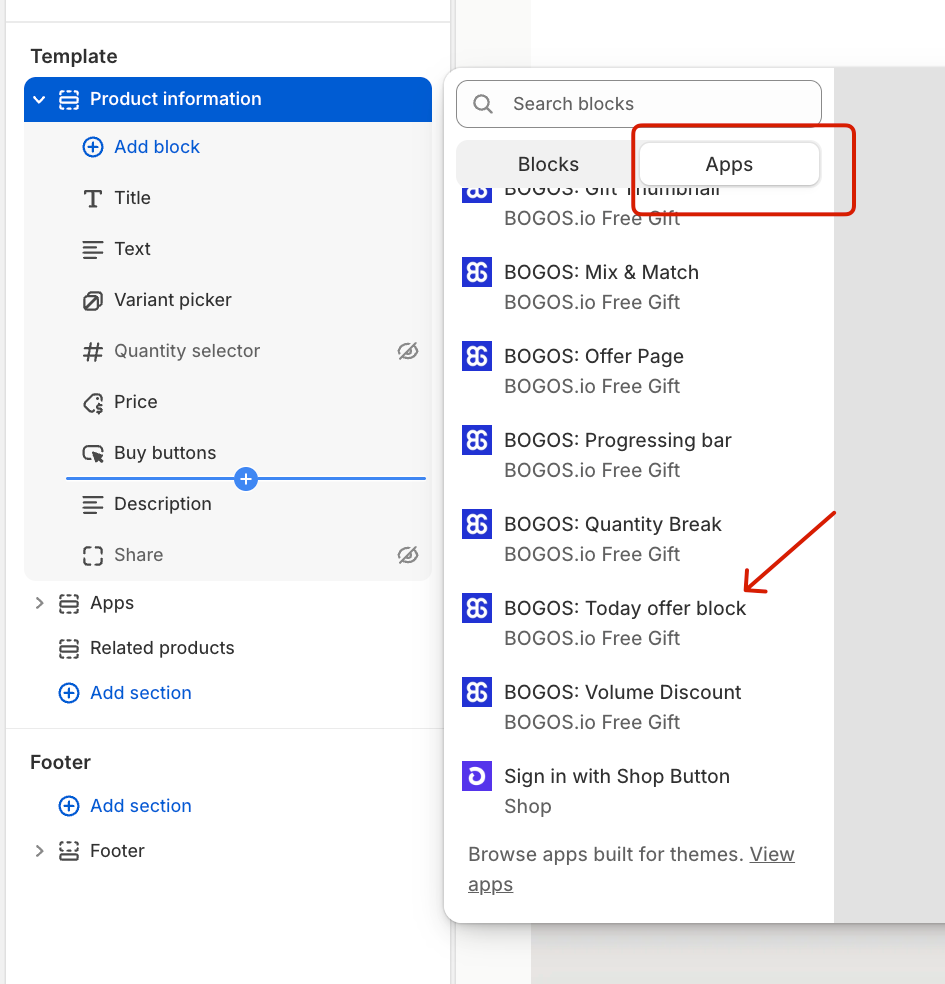
* After setting up your Today Offer Block, you have to [**add it to your theme**](#add-block-to-your-theme) to make it appear on your storefront.
* You can create multiple blocks, each with different offers and color settings, and display them on different pages.
{% endhint %}
{% embed url="" %}
Setting up a Today Offer block with BOGOS includes 4 steps:
1. On the Menu, open Boosters > Create booster > Today Offer Block.
2. Set up Content.
3. Set up Style.
4. Publish and add the block to your store.
### 1. Set up Content
#### a) General
First, fill in the General information for your block:

* **Booster name:** Edit the name of your Today Offer block for internal use only. This helps you manage it easily within the system and won't be visible to customers.
* **Booster title:** Edit the title of your Today Offer block that will be visible to customers.
* **Booster subtitle (optional):** Add an optional description below the block title, used to provide additional context or details for the offer.
#### b) Offer list

First, choose which offers to display on your block using 1 of these 2 methods:
* **Automatically select:** Display all your active Gifts, Bundles, and Discounts. You can also untick any offer type if you want to exclude it from your block.
* **Manually select:** Display only specific offers you select. If you pick deactivated offers, the block will only show them when they are activated.
Then, decide on the Offer card layout for your Today Offer block:
* **Thumbnail:** Displays the offer with a product thumbnail.

* **Product preview:** Allows customers to preview the products included in your offer.

In Show on cards, the options depend on the Offer card layout you chose above:
* If you chose **Thumbnail**, tick **Offer description** to display a brief description of the offer under the title (e.g., "Best products selected for you").
* If you chose **Product preview**, you can tick:
* **Offer description:** Display a brief description of the offer under the title.
* **Label in product list:** Show a label above the product list (e.g., "Choose 1 gift(s) from").
In **Customize each offer display**, click **"Edit offer display"** to edit each offer's content, add a redirect button, badges, and choose which product to preview.

Follow these steps:

1. Select the offer you want to edit.
2. Edit its **Title** and **Description** that will be shown to customers on the Today Offer block. Click **Reset to default text** if you want to restore the original wording.
3. **Add a redirect button (optional):** Tick to enable, then edit the button text and paste the redirect URL. When customers click the button, they'll be redirected to the page you link to (a product page, collection page, etc.).
4. **Offer highlight badge (optional):** Tick to enable, then enter the badge text (e.g., "10% OFF") to highlight the offer on the card.
5. **Offer timer (optional):** Tick to enable a countdown badge on the offer card. Then choose one:
* **Countdown to offer's end time:** The timer counts down to the offer's scheduled end time.
* **Set a custom duration:** You set the countdown length yourself.
{% hint style="warning" %}
If the selected offer doesn't have an end time set, the countdown won't appear. In that case, use Set a custom duration instead, or add an end time to the offer. Then, choose When countdown ends:
* **Hide the timer when it ends (recommended):** The timer disappears but the offer stays visible.
* **Hide the whole offer when it ends:** The entire offer is removed from the block.
{% endhint %}
6. The last option depends on the Offer card layout you chose above:
▶ If you choose **"Thumbnail"**, set a thumbnail for your offer with 3 options:
* **One product image:** Select one product to show as the offer thumbnail.
* **Product image group:** Choose up to 4 products to show as the offer thumbnail.
* **Custom image:** Select from available icons or upload your own image. We recommend using .jpg or .png files with a maximum size of 100 KB for fast loading.
▶ If you choose "Product preview", edit the Product list label, which will show above the product list (e.g., "Buy at least 2 items from the bundle").
{% hint style="warning" %}
If you don't edit the offer display, BOGOS will display the offer name (you set up when creating offers) as the title, and randomly select a product for the image preview.
{% endhint %}
### 2. Set up Style
#### a) Open widget

First, choose the Block layout:
* **Grid:** Offers display in rows based on the number of offers per row you set.
* **Carousel:** Offers display in a horizontal slider that customers can swipe or click through. When Carousel is selected, two extra options appear:
* **Show dot pagination:** Show navigation dots below the slider.
* **Automatically slide:** Auto-advance the slider without customer action.
Then, set Offers per row (for Grid) or Offers per slide (for Carousel):
* **Desktop:** Choose 2 or 3.
* **Mobile:** The block will automatically show 1 offer per row/slide.
#### b) Color

Here, you can easily customize the colors of all the block elements to match your store's branding:
* **Widget color:** Adjust the Block title, Block description, and Block color.
* **Offer card:** Adjust the Offer title, Offer description, Offer card color, and Dashed line color.
* **Button:** If you set a redirect link for your offers, customize the Button color and Button text color.
* **Add-on:** Customize badge colors for offers.
* **Offer highlight badge:** Badge color and Badge text color.
* **Offer timer badge:** Badge color and Badge text color.
### 3. Publish and Add Block to Your Theme
After setting up **Content** and **Style**, click **Publish** to save your Today Offer block. Once published, the Placement tab will be enabled so you can add the block to your store.
**Add block via Placement tab**

In the **Placement** tab, follow these 2 steps:
1. **Copy booster ID:** Click Copy to copy the block's ID (e.g., 1413). The theme block needs this ID to display the correct booster.
2. **Open theme and paste:** Click **"Go to theme editor"** to open your Shopify theme editor in a new tab with the **BOGOS: Today Offer block** already added. Paste the ID into the Booster ID field of the block and save your theme.
### Need Help?
If you need any assistance, feel free to reach out to our customer support team via live chat within our BOGOS app.
## FAQs
How to add the Today Offer block to my Shopify theme?
In BOGOS app, please create & save your Today Offer Block (choose offers, layout, colors) first. Then, follow the steps below:
Step 1: In Shopify admin go to Online Store → Themes → Customize.
Step 2: Open the page where you want it (Home, Product, Collection, Cart, etc.).
Step 3: In the left sidebar, click “Add section” → Apps → select “BOGOS: Today Offer Block”.
Step 4: Drag it to the desired position and click Save.
In case you want to show only one specific block
* Back in BOGOS, copy that block’s ID (e.g. 53).
* Return to the theme editor, click the Today Offer Block section, paste the ID into the “Booster ID” field, then Save.
**How to find the Booster ID?**
Step 1: Open the BOGOS app in your Shopify admin.
Step 2: Go to Boosters > Today Offer block you want to show
Step 3: Look at your browser URL—the numeric value at the very end is the ID
How to customize the image of the gift product on the Today offer Block?
The image of the Today Offer block is set according to the image of the first product selected in the offer. If you want to change the image, please follow the steps below:
Step 1: Open BOGOS app → Boosters > Today Offer Block.
Step 2: Open the Today offer Block you want to adjust image. In your block, go to **Offer Card** and make sure layout = **Thumbnail.**
Step 3: Under **Customize offer display**, click **Edit offer display.**
Step 4: Select the offer you want → in the thumbnail section choose:
* **One Product Image** or **Product Image Group**, then pick the product(s), or
* **Custom Image** and upload your own.
Step 5: Save the block, then refresh your storefront to see the new image.
{% hint style="warning" %}
Note: If you don’t edit the offer display, BOGOS will auto‑pick a product image for you.
{% endhint %}
When my offer is deactivated or expires, will it automatically hide on the Today Offer Block?
Yes. The Today Offer Block only shows active offers. Please note that:
* Deactivated or expired offers are automatically hidden from the block on your storefront.
* If you manually selected offers, they’ll still be listed in the block setup, but won’t display to customers until you activate them again
---
# Agent Instructions
This documentation is published with GitBook. GitBook is the documentation platform designed so that both humans and AI agents can read, navigate, and reason over technical content effectively. Learn more at gitbook.com.
## Querying This Documentation
If you need additional information that is not directly available in this page, you can query the documentation dynamically by asking a question.
Perform an HTTP GET request on the current page URL with the `ask` query parameter, and the optional `goal` query parameter:
```
GET https://docs.bogos.io/detailed-guide/boosters/create-today-offer-block.md?ask=&goal=
```
`ask` is the immediate question: it should be specific, self-contained, and written in natural language.
`goal` is optional and describes the broader end goal you are ultimately trying to accomplish on behalf of the user. GitBook uses it to tailor the answer towards what is most useful for that goal.
The response will contain a direct answer to the question and relevant excerpts and sources from the documentation.
Use this mechanism when the answer is not explicitly present in the current page, you need clarification or additional context, or you want to retrieve related documentation sections.