> For the complete documentation index, see [llms.txt](https://docs.bogos.io/llms.txt). Markdown versions of documentation pages are available by appending `.md` to page URLs; this page is available as [Markdown](https://docs.bogos.io/cn/quick-start-guide/adjust-bogos-blocks.md).

# 调整 BOGOS 模块

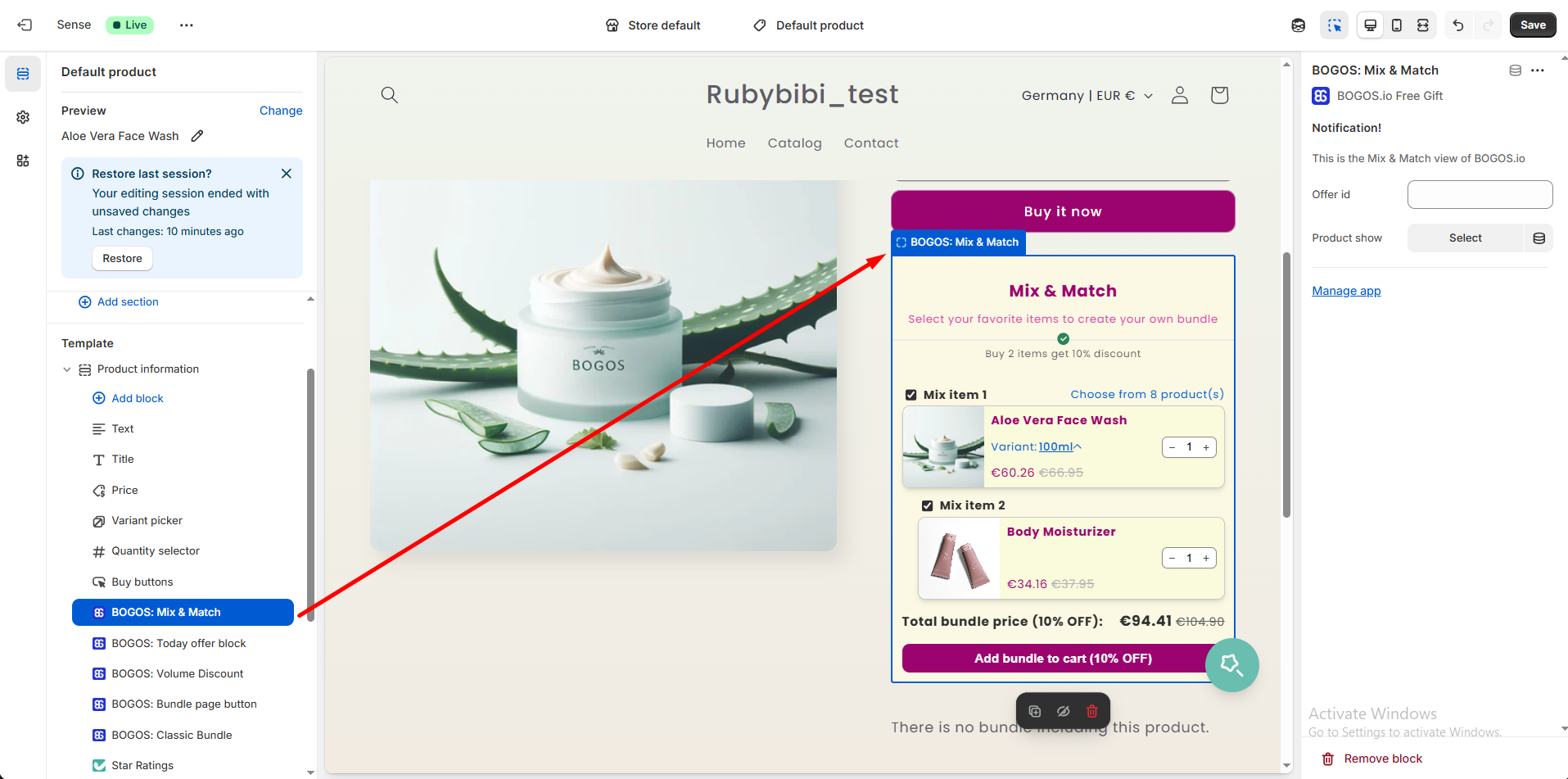
<figure><img src="/files/jB7RIsbgwRvlWvNsU5qY" alt=""><figcaption></figcaption></figure>

通常情况下，某些 BOGOS 模块会**自动出现在您的 Shopify 前台**。

但在以下情况下，您**需要手动调整 BOGOS 模块**：

* 在您希望的页面上未看到小组件
* 使用[结账页追加销售](/cn/detailed-guide/upsell-offer/create-checkout-upsell.md)或[感谢页追加销售](/cn/detailed-guide/upsell-offer/create-thank-you-page-upsell.md)
* 想要更改小组件的位置
* 想要在商品页面或其他店铺页面上添加新模块

{% embed url="<https://www.youtube.com/watch?v=w4KFLP1cUgY>" %}

**调整 BOGOS 模块包含 6 个基本步骤：**

1. 进入您的主题编辑器 > [选择您想要添加模块的页面](#choose-the-page-to-adjust-blocks)。
2. 点击[添加区块或添加模块 > 应用](#add-a-new-bogos-block)。
3. 搜索并选择您想要的 BOGOS 模块。
4. [输入优惠活动/助推器 ID](https://bogos-guideline.gitbook.io/user-guide/user-guide/customize/customize-bogos-blocks#enter-id-if-required)（如需要）。
5. [将模块拖放](#move-an-existing-bogos-block)到您希望的位置。
6. 点击保存。

**如需更详细的说明**，请参阅以下指南：

### 选择要调整模块的页面

在添加或移动 BOGOS 模块之前，请先确定您想在哪个页面上展示它。

1. 进入 Shopify 后台 > 网店 > 主题 > 编辑主题。
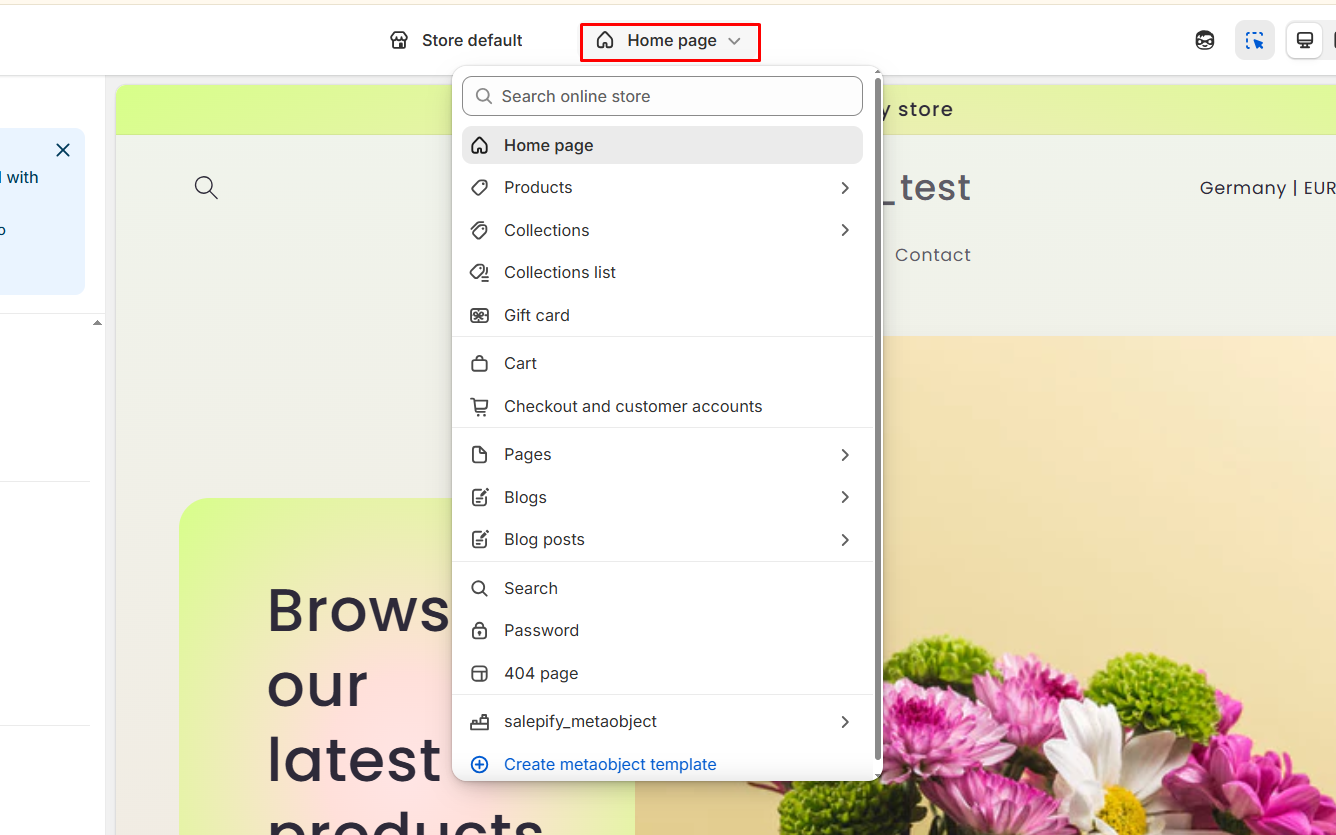
2. 在页眉中央，选择您想要编辑的页面。

<figure><img src="/files/l84FK1zURw6zncHu5fOJ" alt=""><figcaption></figcaption></figure>

{% hint style="info" %}
**每种页面类型支持不同的 BOGOS 模块：**

* 商品页面（支持所有 BOGOS 模块）
* 首页、系列页面、购物车页面（仅支持特定模块）
* 结账页面（结账页追加销售模块——仅限 Shopify Plus）
* 感谢页面（感谢页追加销售模块）
* 自定义页面（仅支持特定模块）
  {% endhint %}

进入您想要编辑的页面后，即可开始添加或移动 BOGOS 模块。

### 添加新的 BOGOS 模块

您可以将 BOGOS 模块添加到**现有区块内**，或**作为新区块的一部分**，具体取决于您的主题布局和展示偏好。

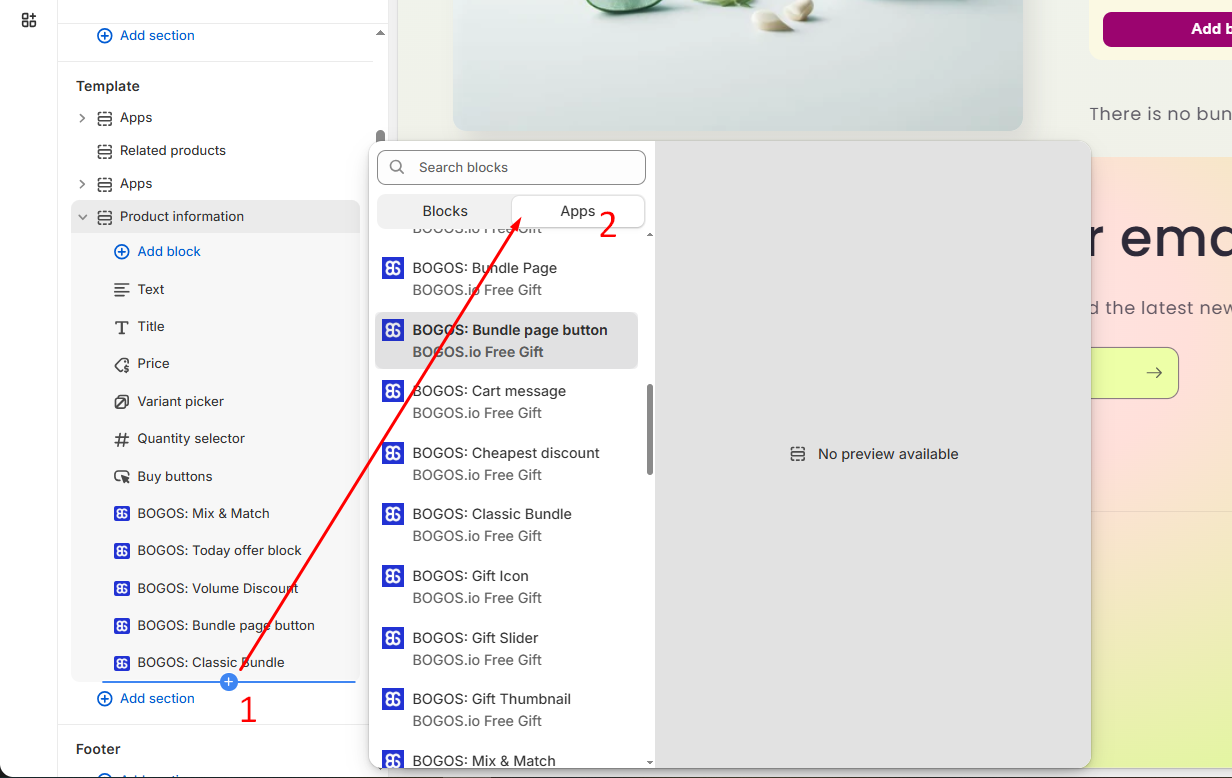
1. 选择添加模块的方式：

* 点击现有区块，或
* 如果想创建新区块，点击“添加区块”

2. 添加模块 > 应用 > 选择您想要的模块。

<figure><img src="/files/n2eWkZ0GSmQApEojvdiD" alt=""><figcaption></figcaption></figure>

{% hint style="info" %}
列表中只会显示适用于该页面的模块。如果某个模块未出现在列表中，说明该页面不支持此模块。
{% endhint %}

2. [输入优惠活动/助推器 ID](#enter-id)（如需要）。
3. 将模块或区块拖放到您希望的位置。
4. 点击保存。

### 移动现有的 BOGOS 模块

要更改某个区块内模块的位置：

1. 找到包含您想移动的 BOGOS 模块的区块。
2. 将模块拖放到该区块内您想要的位置。
3. 点击保存。

**注意：**

* 模块只能在其当前所在的区块内移动。
* 如果您想**将模块移动到另一个区块**，需要执行以下步骤：

1. 选中并删除现有的 BOGOS 模块。
2. 找到新区块 > 添加模块 > 应用。
3. 搜索并重新选择您想移动的模块。
4. 将模块拖放到您希望的位置。
5. 点击保存。

### 输入 ID（如需要）

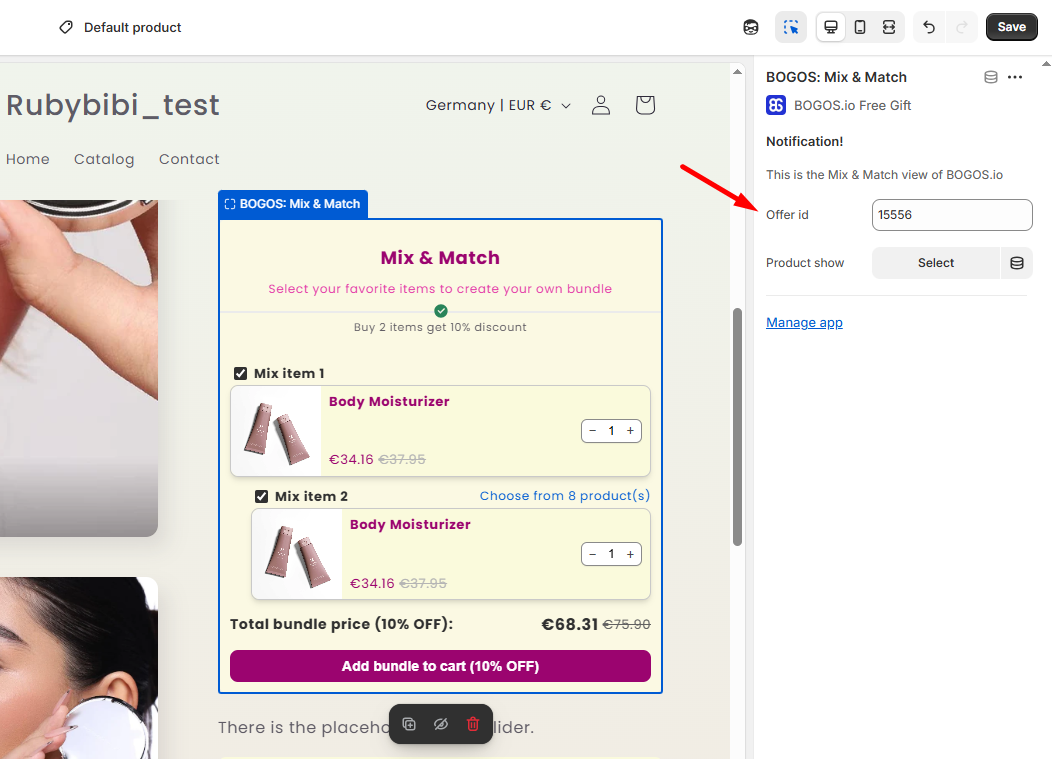
优惠活动 ID 或助推器 ID 是 BOGOS 中每个优惠活动和助推器的唯一标识符。它可让您通过输入的 ID 展示正确的模块。

<figure><img src="/files/UMaV6f7REwR7lpx2yiHp" alt=""><figcaption></figcaption></figure>

{% hint style="info" %}
某些功能（如赠品滑动栏、结账页追加销售和赠品缩略图）不支持输入 ID。这些模块会在顾客满足指定条件时自动出现。
{% endhint %}

<details>

<summary><strong>🔻 在商品页面上，ID 为可选项</strong></summary>

**大多数情况下，您无需**在商品页面上输入 ID。BOGOS 会自动匹配并展示与该商品相关的小组件内容。

例如：经典捆绑包小组件会自动出现在该捆绑包所包含的所有商品页面上。

**仅在以下情况下，您才需要输入** ID：

* 您设置了多个[进度条](/cn/detailed-guide/boosters/create-progress-bar.md)或[今日优惠模块](/cn/detailed-guide/boosters/create-today-offer-block.md)，并希望在每个商品页面上展示对应的那一个。（如果未指定 ID，默认将显示所有进度条或今日优惠模块。）
* 您想展示与 BOGOS 自动选择的模块不同的模块。

</details>

<details>

<summary><strong>🔻 在其他页面上，ID 为必填项</strong></summary>

当您在首页、系列页面、购物车页面或自定义页面上添加 BOGOS 模块时，**必须输入**特定的 ID，以指定要展示的模块。

</details>

#### 🔻 如何查找并输入 ID

1. 打开 BOGOS 应用 > 进入您想要展示的优惠活动或助推器的设置页面。
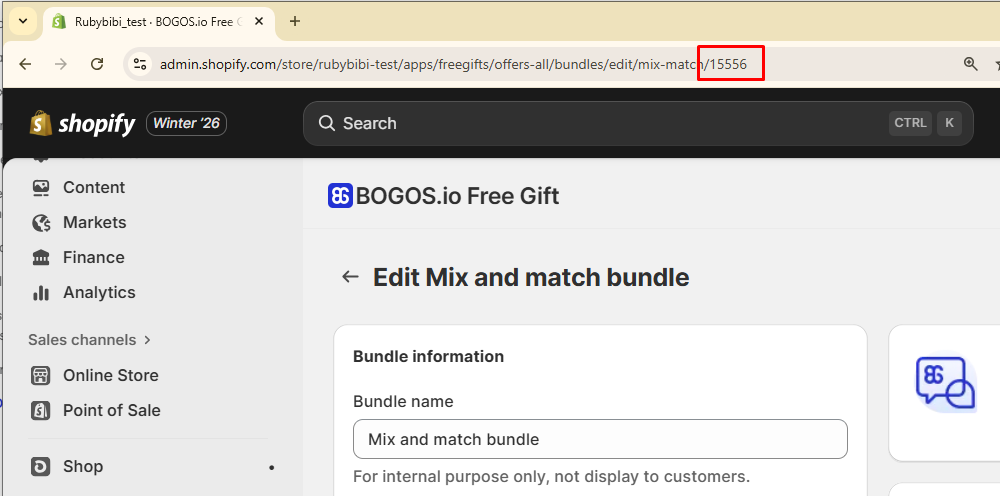
2. 复制 URL 链接末尾的 ID（例如 15556）

<figure><img src="/files/mW6GdI3fb8Aul0YenP3L" alt=""><figcaption></figcaption></figure>

1. 在主题编辑器中，选择所需的 BOGOS 模块。
2. 找到模块设置中的 ID 字段。
3. 输入正确的 ID（例如 15556）。
4. 点击保存。

### 常见问题解答（FAQ）

<details>

<summary><strong>为什么我的优惠活动已启用，却没有出现在店铺中？</strong></summary>

\*\*A1：\*\*如果您的优惠活动已启用，但未显示在店铺中，请检查以下几点：

* 确认条件是否已满足，因为部分小组件仅在满足条件时才会显示（例如正确的商品、系列或购物车条件）。
* 确保优惠活动模块已添加到您的主题中。进入主题编辑器，确认 BOGOS 模块出现在该页面上。如果未出现，请[将优惠活动模块添加](#add-a-new-bogos-block)到页面中。
* 如果使用了优惠活动 ID，请确认您在模块设置中输入了正确的 ID。

</details>

<details>

<summary><strong>如何限制小组件仅在特定页面上显示？</strong></summary>

\*\*A2：\*\*若要让 BOGOS 模块仅在特定页面显示，而非所有页面，您需要[创建自定义页面模板](https://help.shopify.com/en/manual/online-store/themes/theme-structure/templates)：

1. 进入 Shopify 后台 > 网店 > 主题 > 编辑主题。
2. 点击首页下拉菜单 > 选择“页面” > 创建模板。
3. 按需自定义该页面。
4. [添加](#add-a-new-bogos-block)您想展示的模块。

</details>

<details>

<summary><strong>哪些情况下需要优惠活动 ID？</strong></summary>

只有在以下情况下，您才需要输入优惠活动 ID（或助推器 ID）：

* 在商品页面上：
  * 通常您无需输入 ID——BOGOS 会自动展示正确的小组件（例如该商品对应的捆绑包）。
  * 仅在以下情况下需要输入 ID：
    * 您设置了多个进度条或今日优惠模块，并希望每个商品页面展示特定的一个；或
    * 您想展示与 BOGOS 自动选择的模块不同的模块。
* 在其他页面（首页、系列页面、购物车页面、自定义页面）上：

ID 为必填项。在主题编辑器中添加 BOGOS 模块时，您必须输入正确的 ID，以便 Shopify 知晓要展示哪个优惠活动/模块。

对于赠品滑动栏、结账页追加销售、赠品缩略图等模块，您无需输入 ID，它们会在满足条件时自动显示。

</details>

<details>

<summary><strong>在哪里可以找到我的优惠活动 ID？</strong></summary>

请按照以下步骤操作：

第 1 步：在您的 Shopify 后台中打开 BOGOS 应用。

第 2 步：进入您想要查看的具体优惠活动/助推器（例如经典捆绑包、进度条、今日优惠模块），点击进入编辑。

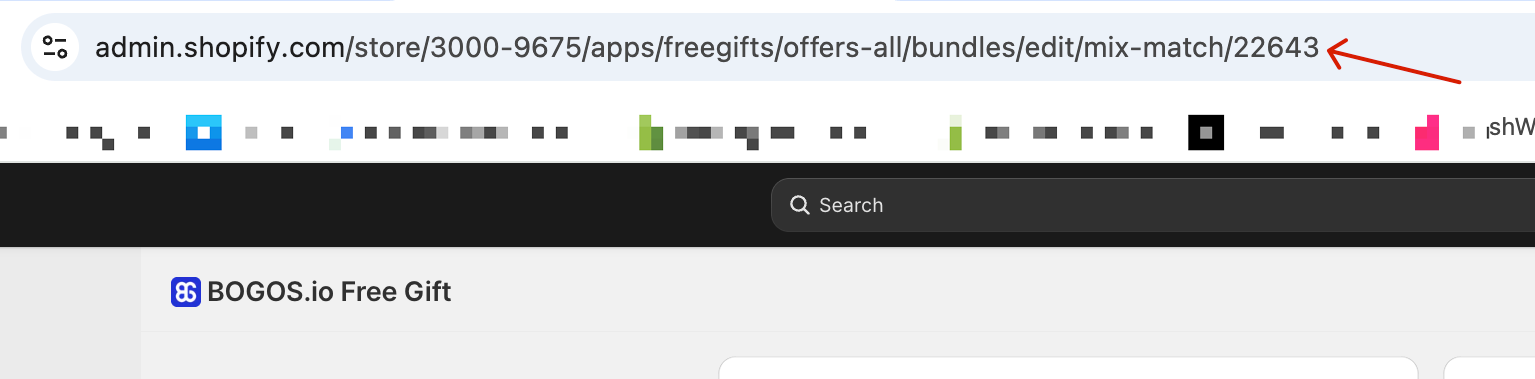
第 3 步：查看浏览器 URL——末尾的数字即为该 ID（例如：.../mix-match/22643 → ID = 22643）。

<div align="left"><img src="/files/HjTiuM2GEku1wOiPbmJa" alt="" height="132" width="532"></div>

第 4 步：复制该数字，并粘贴到主题模块设置中的“优惠活动 ID / 助推器 ID”字段（网店 → 自定义 → 选择 BOGOS 模块 → 粘贴 ID → 保存）。

</details>


---

# Agent Instructions
This documentation is published with GitBook. GitBook is the documentation platform designed so that both humans and AI agents can read, navigate, and reason over technical content effectively. Learn more at gitbook.com.

## Querying This Documentation
If you need additional information that is not directly available in this page, you can query the documentation dynamically by asking a question.

Perform an HTTP GET request on the current page URL with the `ask` query parameter, and the optional `goal` query parameter:

```
GET https://docs.bogos.io/cn/quick-start-guide/adjust-bogos-blocks.md?ask=<question>&goal=<endgoal>
```

`ask` is the immediate question: it should be specific, self-contained, and written in natural language.
`goal` is optional and describes the broader end goal you are ultimately trying to accomplish on behalf of the user. GitBook uses it to tailor the answer towards what is most useful for that goal.

The response will contain a direct answer to the question and relevant excerpts and sources from the documentation.

Use this mechanism when the answer is not explicitly present in the current page, you need clarification or additional context, or you want to retrieve related documentation sections.